How to Open an Account with RoboForex
Let’s take a look at the registration, account opening, and verification process with RoboForex. The registration process won’t take much time, especially since we will explain in detail how to complete it correctly.Contents:

Registration of a Personal Account with RoboForex
First, you need to register a personal account. To do this, go to the RoboForex website via this link. Find the "Open an account" button and click it.

You will be taken to the personal account registration form.
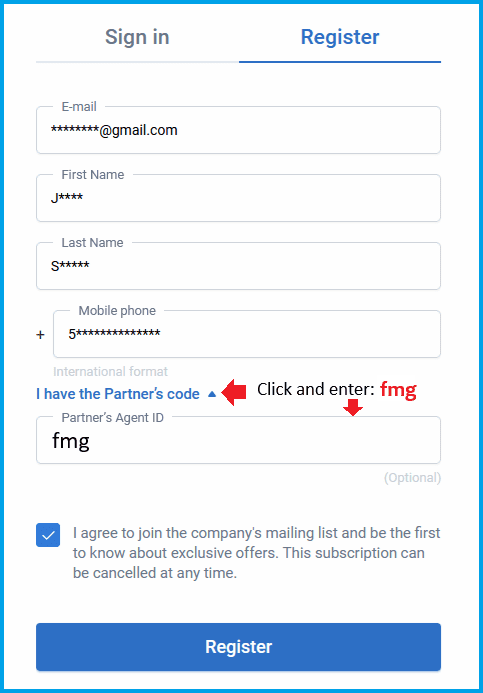
You will need to fill out this form by entering the following information:
- E-mail — your email address
- First Name — your first name
- Last Name — your last name
- Mobile phone — your mobile phone number
- Click the "I have the Partner’s code" link
- In the "Partner’s Agent ID" field, enter the code: fmg
- Check all the boxes to confirm that you agree with the documents, terms, and conditions
- Click the "Register" button
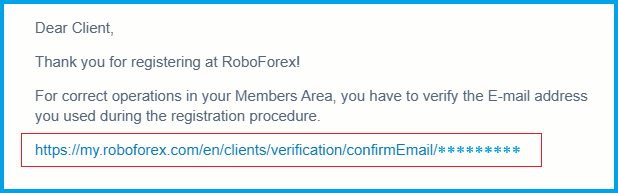
After that, you will receive an email with a link to verify your email address. Click the link in the email.
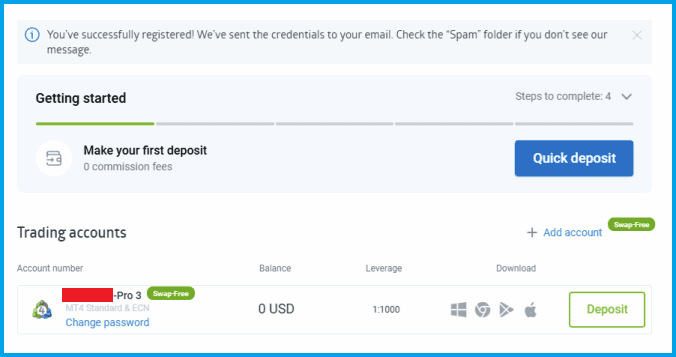
After following the link from the email, you will be taken to the RoboForex website, where you will see a message confirming that you have successfully registered and that all your details have been sent to your email. You will also see that the broker has opened one trading account for you.
Return to your email and open another message from the broker, which contains the login details for your RoboForex personal account and trading account.
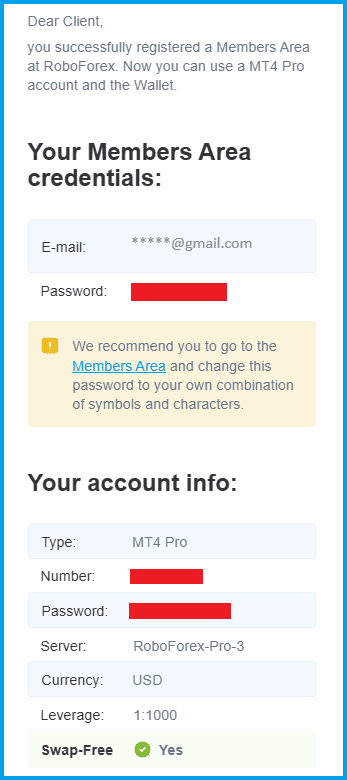
So, your personal account has been successfully registered, and you can now change your password.
Account Verification with RoboForex
To start the verification process, log in to your RoboForex personal account, click the "Profile" button, select "ID/Address (KYC)" from the menu, and you will be taken to the verification page.
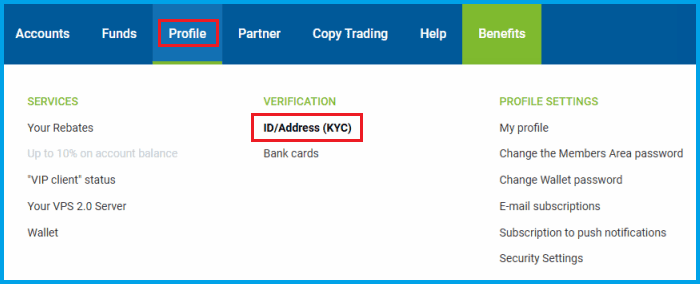
Here you will see three types of verification:
- E-mail verification
- ID/Passport verification
- Address verification
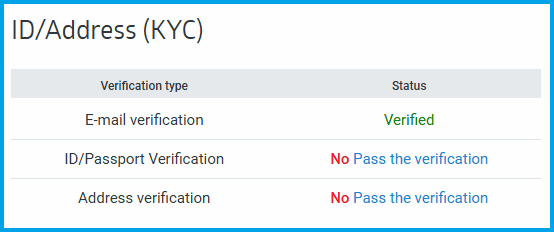
All three types of verification must be completed. Your email has already been verified — during registration, you followed the link from the email, thereby verifying your email address.
Now, you need to complete passport and address verification. To do this, click the "Pass the verification" link next to each verification type, fill in all the fields in the verification form, take photos or scan the required documents, and upload them.
After that, you will need to wait while your documents are reviewed. If everything is in order, the status "Verified" will appear next to each verification type in your personal account.
If you want to enable two-factor authentication for your personal account, you will also need to verify your mobile phone number.
This is done quite easily: in your personal account, go to the "Profile" section, click "Security Settings", and you will be taken to the security settings page.
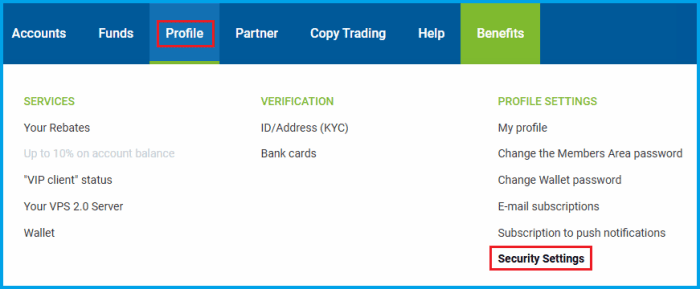
Select "Phone Verification", then click "Verify".
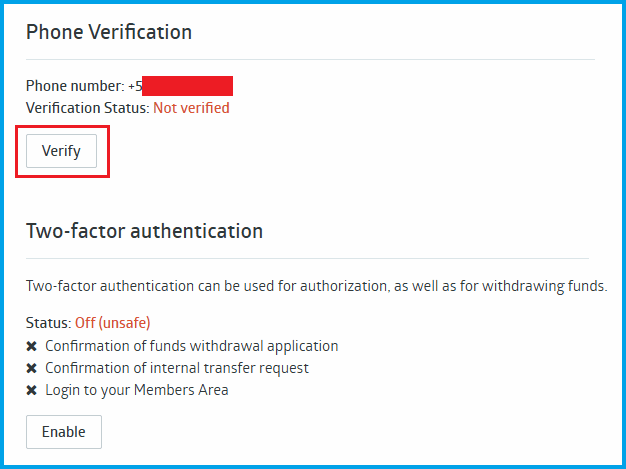
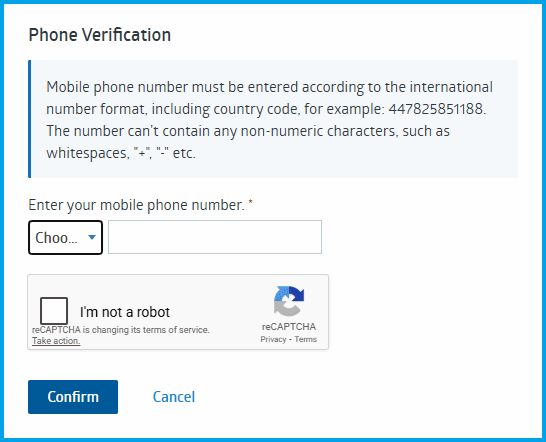
A window will appear where you can enter your mobile phone number. Enter your number and click "Confirm".
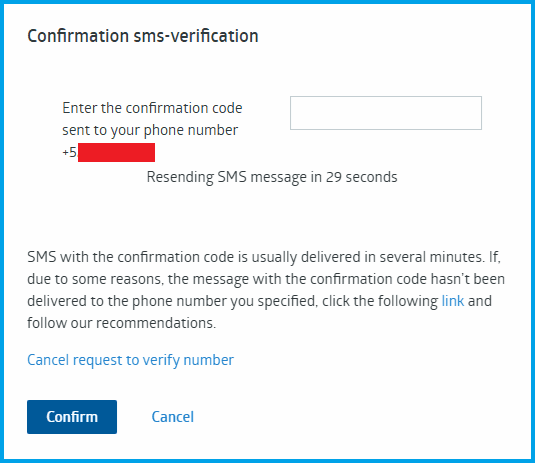
A new window will open where you need to enter the verification code you received via SMS, then click "Confirm".
Opening a Trading Account
During the registration of your personal account, RoboForex will automatically open one trading account for you. However, you are not limited to this account, and if for any reason it does not suit you, you can open another trading account.This is done as follows: log in to your personal account, go to the "Accounts" section in the menu, then in the "Open a New Account" section, click "Real account".
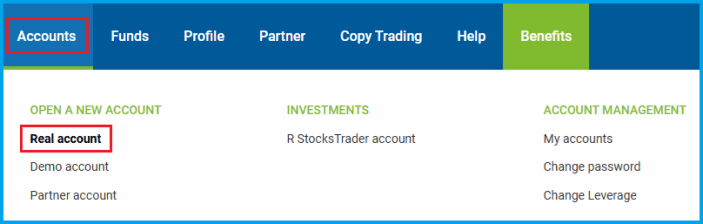
A page for selecting accounts will open. Choose the account that suits you (real, demo, or partner) and fill in the required details.
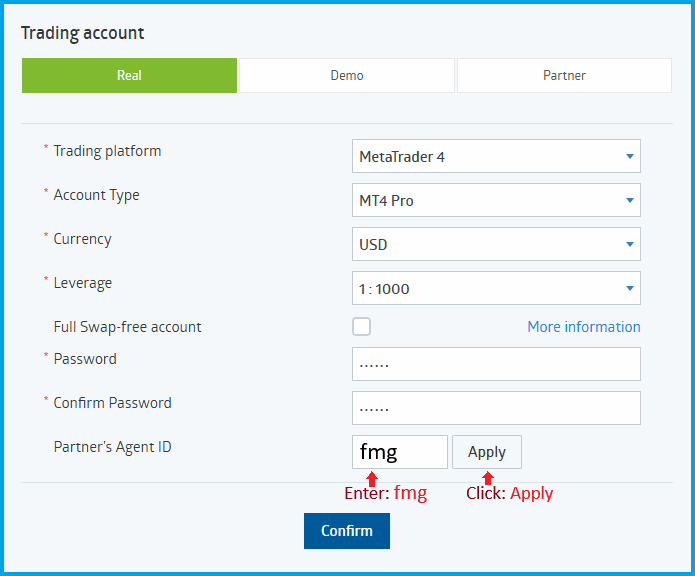
Let’s take a closer look at how to fill out the account opening form:
- Trading Platform
- Account Type
- Currency
- Leverage
- Full Swap-free account — enable if needed
- Password
- Confirm Password
- Enter the Partner’s Agent ID: fmg and click "Apply"
- Click the "Confirm" button
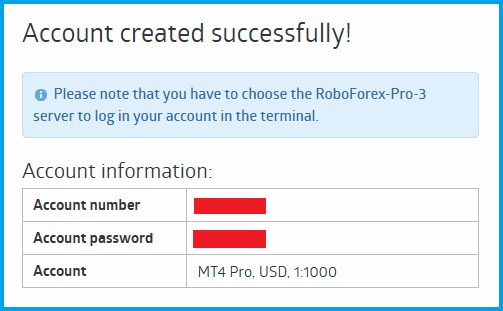
The account will be opened immediately, and you will see the message with your trading account access details. Write them down and keep them safe. You will use these details to connect to your trading account.
In Conclusion
To start registering your personal account and trading accounts, go to the RoboForex website via this link. This article should help you and speed up the process.
- ✅ ECN, NDD, STP, and DMA
- ⚡ How to Register with Forex4you
- 📜 Cent Account
- 💱 Financial Regulators
- 👍 Offshore Brokers





 Reviews:
 Reviews:
 Reviews:
 Reviews: